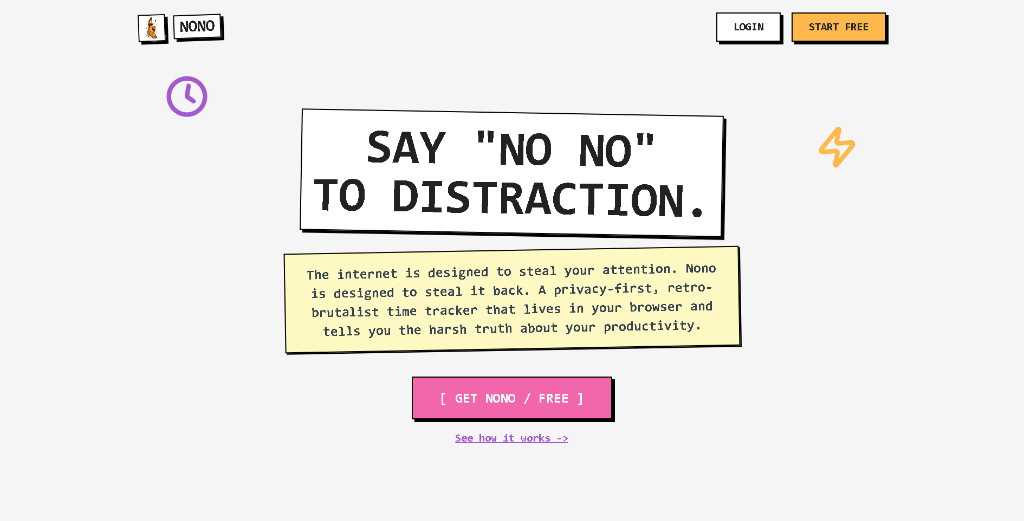
In an era of invasive trackers and cloud-monopolized analytics, NONO is a privacy-first, automated browser time-tracker designed to help you regain control of your digital life. It runs quietly in your browser, keeping your data local and secure while providing retro-styled insights into your productivity.
Overview
NONO is composed of three decoupled, lightweight modules:
- Extension (Manifest V3): Captures active tab hostnames, aggregates time spent in seconds, and queues records.
- Web Dashboard (React 19, Vite, Tailwind CSS v4): A sleek, retro/brutalist frontend that retrieves and visualizes your domain logs.
- Backend/Server (Node.js, Express, Supabase): A lightweight REST API to securely store, sync, and retrieve logs.
Key Features
- Zero-Trace Sync: Aggregated logs are saved locally and synced only to your private database instances.
- Automated Logging: No manual start/stop triggers. The extension detects tab focus and active window state.
- Brutal/Retro Aesthetics: Sleek dark-mode dashboards with curated glassmorphism styling and clean, low-latency animations.
- Offline Sovereignty: Seamlessly caches logs inside chrome extension storage when backend servers are offline.
Local Development Setup
To run NONO locally, follow these steps:
1. Backend Server Setup
Navigate to the server directory, install dependencies, and configure environment variables:
cd apps/server
npm install
# Configure your supabase URL and Service Key in .env
node index.js
The server will start running on http://localhost:3000.
2. Web Dashboard Setup
Navigate to the dashboard directory, install dependencies, and start the development server:
cd apps/web
npm install
npm run dev
The dashboard will run on http://localhost:5173.
3. Load Browser Extension
- Open Google Chrome (or any Chromium browser).
- Navigate to
chrome://extensions/. - Enable Developer mode (top-right toggle).
- Click Load unpacked (top-left button).
- Select the
apps/extensionfolder from the cloned repository.
Troubleshooting Guide
- Connection Refused: Ensure the backend server on port 3000 is active. The extension will automatically retry synchronization once the server becomes available.
- No Logs Syncing: Open the extension popup, ensure the synchronization state is set to "Enabled", and verify your browser is not in private/incognito mode (unless explicitly configured).